Years ago I wrote a blog post about how I create a tech lesson plan to project on my SMARTboard. You can read that original post
HERE.
Since then I have continued to do this to save time and energy and make use of every second of class time. Some ways this helps in my classroom:
- It provides a visual schedule for students to keep track of what needs to get done and I avoid the "What are we going to do today?" questions
- I can link video clips, audio clips, and even attach extra projected files with hyperlinks
- It is something pretty for me and my students to look at
If you do not want to start from scratch and would like some cute backgrounds to start with you can download my pre-made Lesson Plan Templates. I have a free version that provides one background for Kindergarten-5th Grade, as well as a version with multiple different backgrounds for purchase. Please note that this is NOT necessary. I personally choose to have a different background each month to keep things fresh, but you could definitely keep the same background for the whole year or even just have a blank slide. That is how I started. Links for my backgrounds are at the end of this blog post. (See below to see a picture of my title page for an April slide):

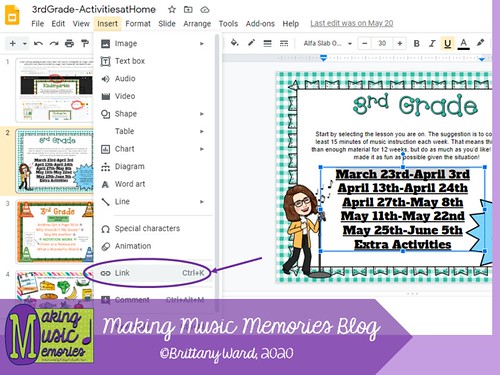
Today, I will start with some of the first steps you should follow on PowerPoint or Keynote to get started. You also can do this in Google Slides and I'll put up a second tutorial with how to do this in Google Slides. I found this strategy helpful when teaching online this spring. I could send them the Google Slide lesson plan with linked videos, games, activities, audio files, etc.
- Begin with your blank slide that you want to list your lesson plans on. Here is an example of what mine looks like:

- Click insert and add a text box in the blank area of your lesson plan template. You can add your lesson plan information in that area.

- When you are done entering your lesson plan information it may look something like this:

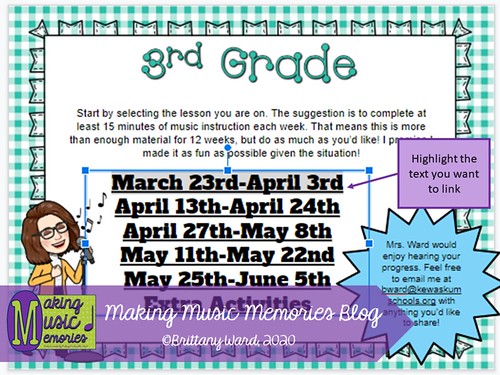
- Once you have your lesson plan typed up you can hyperlink text to a different file or video. In order to do this you want to highlight the text and click insert hyperlink.
- You'll get a prompt like you see below and you can click the file you see or browse for another file. When you have selected the file you want then click "ok".

- You could also hyperlink the file to a different slide in your lesson plan presentation. To do this click "insert", then "hyperlink", then click "place in this document", select the slide you want it to go to, then click "ok".

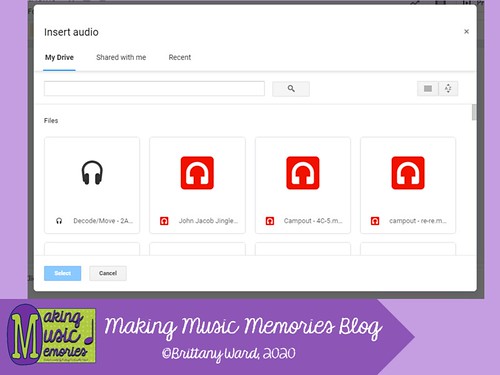
- Another great use of this is to add an audio file to your presentation. I like to do this for adding folk dance music, beat motion songs, or a piece of Classical music we will be listening to. Not matter what you want it is simple to add. Click "insert", "audio", select whether you want something from your computer or you are recording it yourself, then click "ok".

- When you are finished you will see a speaker appear like you see below:

Hopefully this tutorial helps you get started. I will create another blog post soon to give directions on how to do all of this on Google Slides for those interested in using Google Slides instead.
Below is a link to my Lesson Plan Templates for download on my Teachers Pay Teachers Store. My full version will be on SALE for the next few days. ENJOY!
Lesson Plan Templates - Full Version
Lesson Plan Templates - Freebie