Today, I wanted to talk about two Techie Tips that I don't know what I would do without:

The first one is using Dropbox. You can see it by going to http://www.dropbox.com. This file sharing service is completely free and allows you to save files to the internet. You can also connect your files to your computer at school, your computer at home, your smartphone, and your tablet. This is a serious lifesaver for someone who teaches at two different school like I do. I can save my lesson plans, my SMARTboard files, and everything else! It is so nice to be able to create, edit, and save files from any of my computers and not have to worry about emailing the files to myself, carrying around a usb drive, or anything else. Especially because it is so easy to forget and then you suddenly don't have the files you need.
My second techie tip is for teachers that use a lot of SMARTBoard files, Powerpoints, Websites, etc. I learned this from a colleague a couple years ago and it really helps cut down on the amount of prep I have to do from class to class. Here is how it works:
- Create a new SMARTboard file that I normally label as Lesson Plans, but you could label it as anything you want.
- Create a page for each of your classes. This could be one for each class or one for each grade, just depends on how detailed you want it
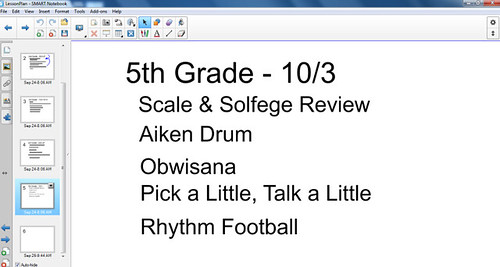
- List out the activities you are going to use for each class. (Make sure that each one is a new text box)
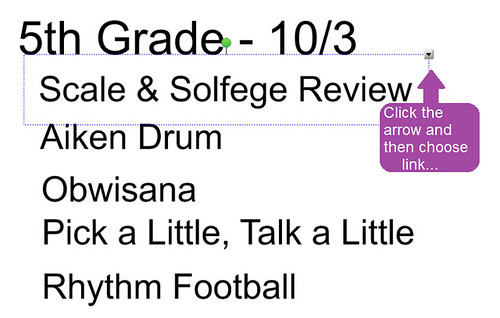
- Now that you have the activities listed out it is time to link them up!
- Click on the arrow and press 'Link...'
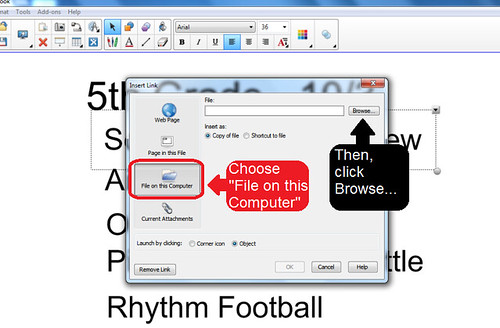
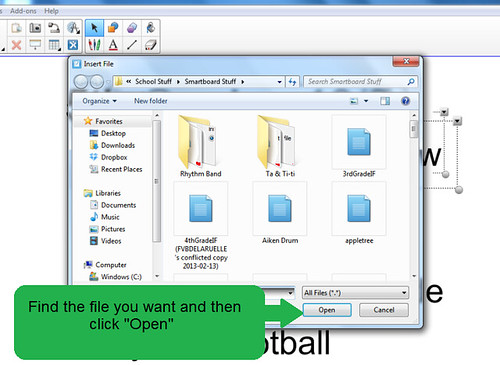
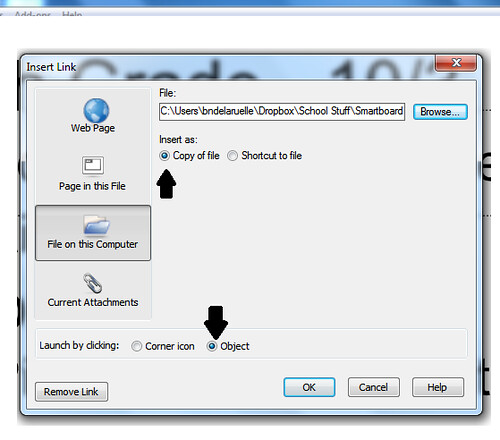
- Click 'File on this Computer' and then 'Browse...' for the file you need
- Once you find the file you need clip 'Open'
- Choose between 'Corner of Object' and 'Object'. I normally choose 'Object' which links the words to the file, but if you click 'Corner of Object' you will see a little paperclip in the corner. You also need to choose between 'Copy of file' and 'Shortcut to file'. Make sure to choose 'Copy of file' for this. It will open much faster!
- Continue these steps until all your files are linked up to your original lesson plans
In totally unrelated news, I have gotten to 11 followers on my Teachers Pay Teachers account and over 80 of you have downloaded my Halloween Rhythms Freebie from Sunday! I'm so glad to see so many of you taking advantage of this fun composition/rhythm practice work. My 1st and 2nd graders have been playing with these the last few days and they are really enjoying it. Be sure to rate the product when you get a chance! I would love to know what you think and if you think there needs to be some improvements. If you haven't picked up this free download you still can at my Teachers Pay Teachers account HERE!