Image Map
Showing posts with label google. Show all posts

Tuesday, July 21, 2020

Lesson Plan Template Tutorial - Lesson 2

Last week I posted how I use Powerpoint to display my lesson plans each day along with directions on how to do it yourself. Today, I'll share how to follow this same process on Google Slides. I personally prefer Powerpoint when teaching in person, but when we transitioned to virtual learning in March I switched over to Google, since that is what all my students had access to. Having these lessons made it easy for students to follow their normal music routine, while also allowing me to include recordings, videos, and more.

If you did not see the tutorial for Powerpoint and would prefer that method you can find that blog post by clicking HERE

  1. Start with an empty slide. You'll see below that I made mine decorative and inviting, but this is definitely NOT a necessity. I started with plain backgrounds about 8 years ago.
  2. Click insert and add a text box in the blank area of your lesson plan template. You can add your lesson plan information in that area.
  3. When you are done entering your lesson plan information it may look something like this (minus the bitmoji and shape in the corner):
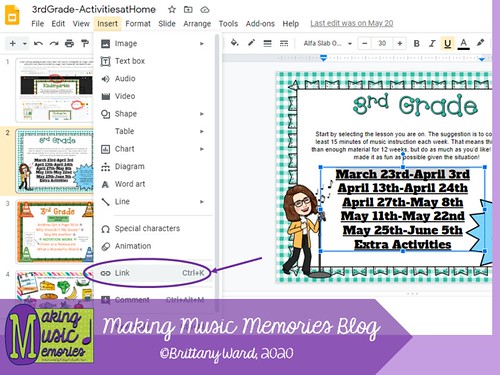
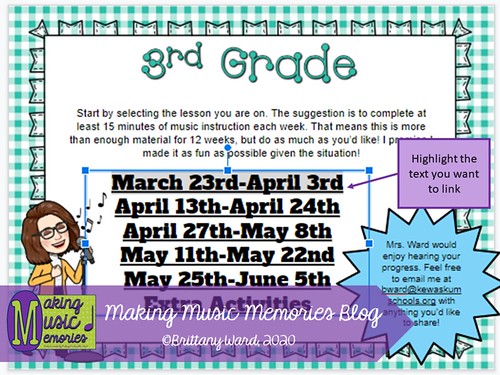
  4. Once you have your lesson plan typed up you can hyperlink text to a different file or video. In order to do this you want to highlight the text
  5. Click "insert" then "hyperlink"
    Slide5
  6. You'll receive a pop-up that allows you to enter the link to another website or click "slide in this presentation" to select a slide in your current Google Slide project.
    Slide6
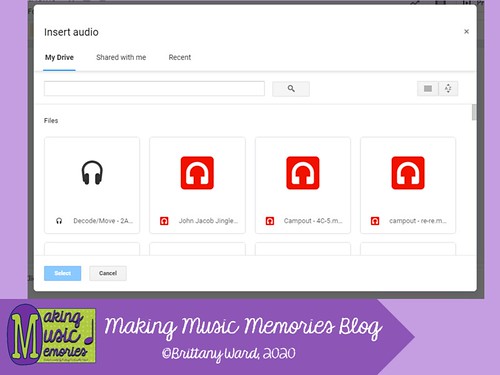
  7. To add an audio file select "insert" and then "audio". Make sure the audio file you want to use is already saved in your Google Account otherwise you won't be able to add it. You'll also want to make sure the audio file is shared to everyone with the link. Otherwise, you'll have issues with students not being able to play the song. (If you need a tutorial on this I'd be happy to do one in the future.)
    Slide7
    Slide8
  8. When you are finished you will see a speaker appear like you see below:
    Slide9
Hopefully this tutorial helps you get started.

Below is a link to my Lesson Plan Templates that I created if you are interested in using them instead of creating your own. My full version will be on SALE for the next few days. ENJOY!
Lesson Plan Templates - Full Version Lesson Plan Templates - Freebie

New-Signature-2020

Thursday, September 13, 2012

Those Great UNPLANNED Teaching Moments...

It is hard to believe that I am already almost finished with my second week of teaching this school year. Last week was the typical 'getting started' lessons. Lots of discussions about expectations and some introductions. However, this is the first year I already know most of my students. It is so nice to be able to call most students by their names. It definitely helps with classroom management when you already have an idea of what to expect from certain students.

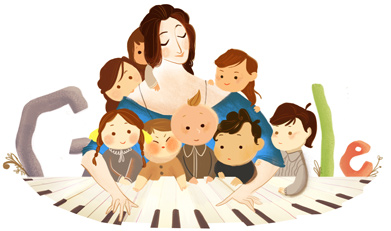
Today, the art teacher at one of my schools told me to check out the google icon today. It was an icon to celebrate Clara Schumann's 193rd birthday! Here is a picture of it for those that may have missed it:


I took this as an opportunity to share a few details about Clara Schumann with my class. It seemed to peak quite a bit of interest and I reminded them that if they went home and clicked on the picture it brings up all sorts of information about Clara.

I love finding those unexpected and unplanned teaching opportunities. It may take sometime away from the originally planned lesson plan, but you have to cease the moment sometimes. :)

Have a fabulous day! Go ahead and check out Clara Schumann on google, you know you want to!